How do I add a Google or Facebook tag or pixel?

You can easily add a Google or Facebook tag/pixel via your dashboard under Website > Domain(s) > Configure > HTML tags/pixel.

Your website 7 steps Updated

Step by step · 7 steps

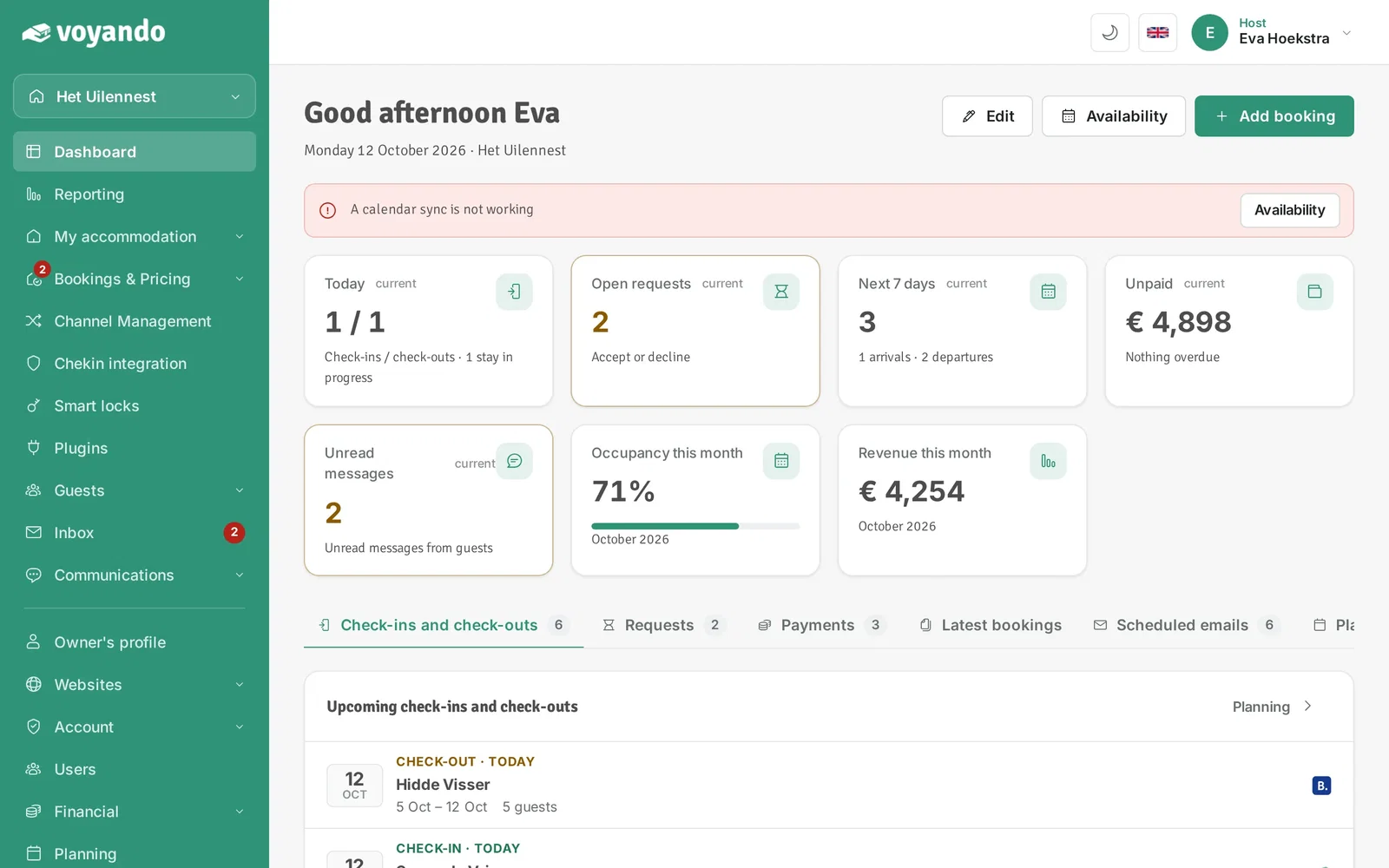
  1. Step 1: Go to your dashboard.

    How do I add a Google or Facebook tag or pixel? – step 1: Go to your dashboard.
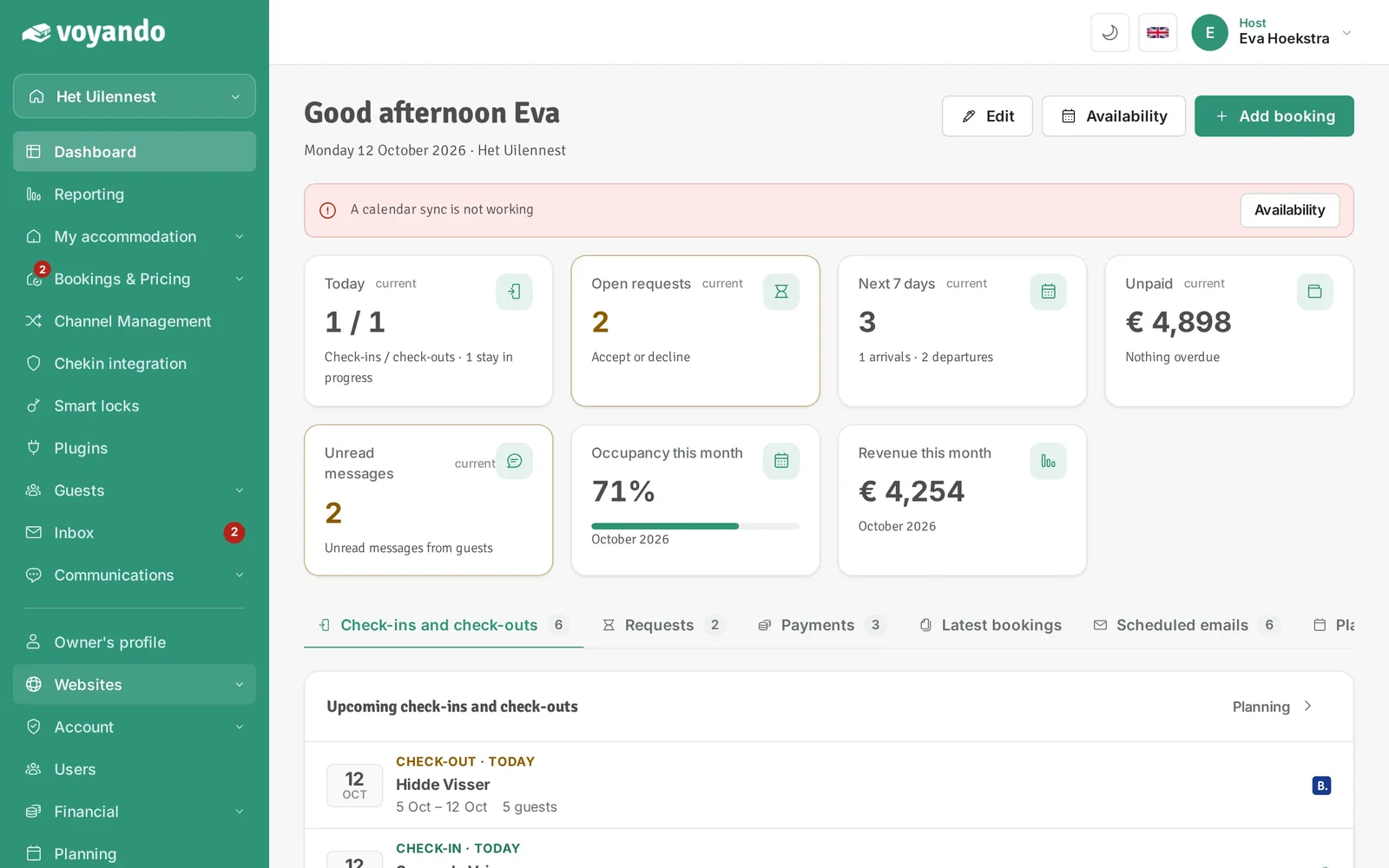
  2. Step 2: Click Websites in the menu.

    How do I add a Google or Facebook tag or pixel? – step 2: Click Websites in the menu.
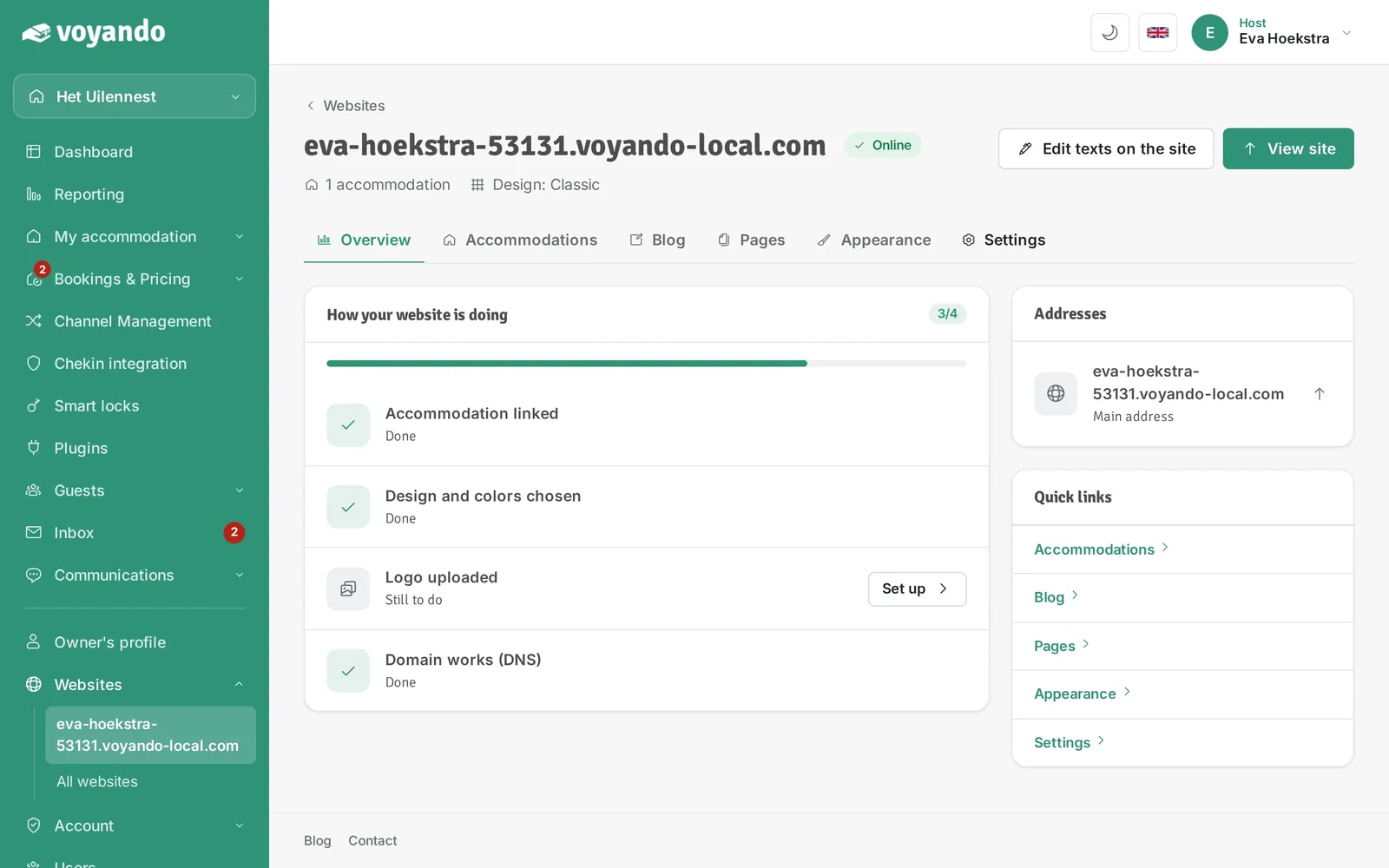
  3. Step 3: Click the address of your website.
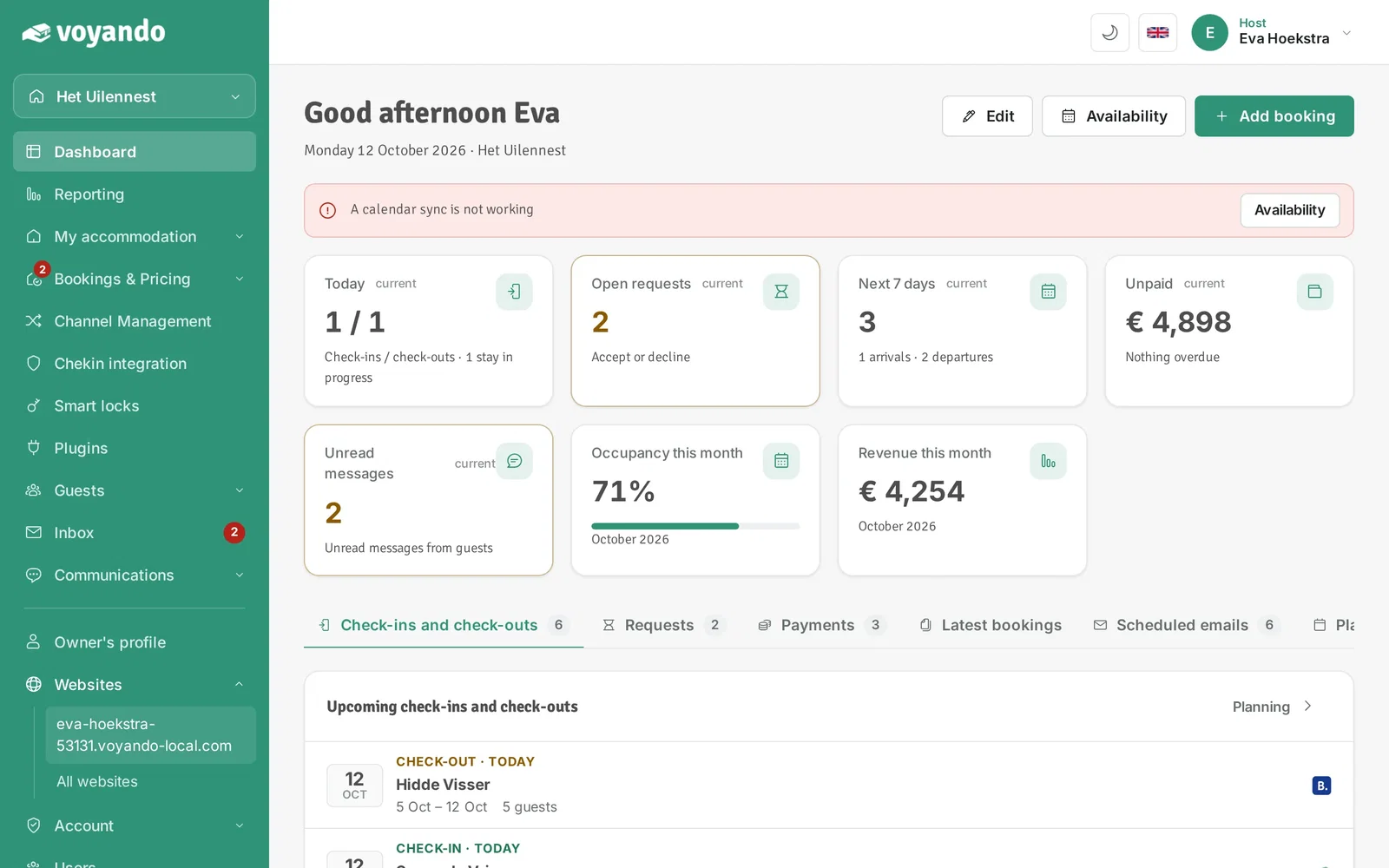
    How do I add a Google or Facebook tag or pixel? – step 3: Click the address of your website.
  4. Step 4: Open the Settings tab.

    How do I add a Google or Facebook tag or pixel? – step 4: Open the Settings tab.
  5. Step 5: Next to HTML tags/pixel, click Edit.
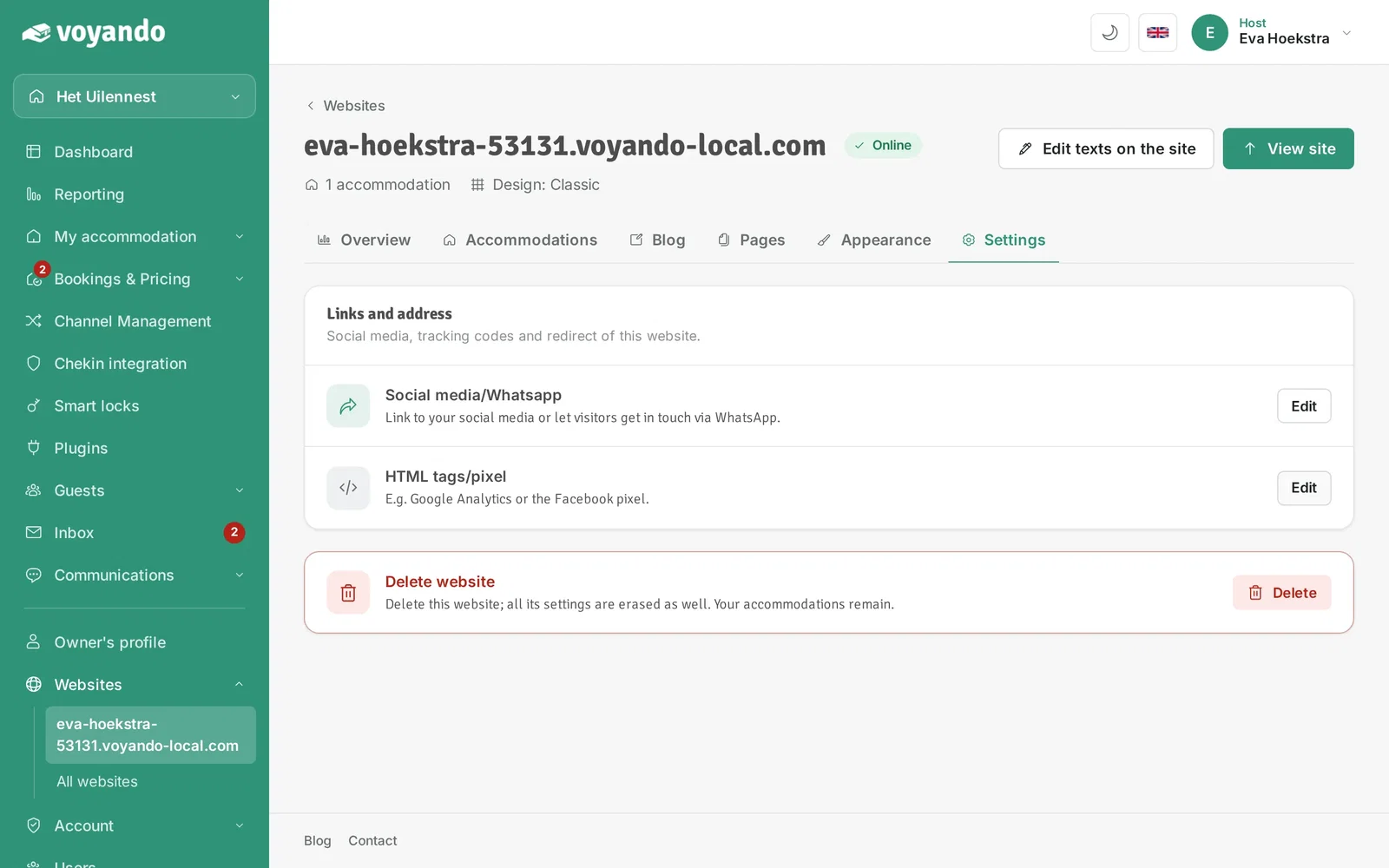
    How do I add a Google or Facebook tag or pixel? – step 5: Next to HTML tags/pixel, click Edit.
  6. Step 6: Paste the tag or pixel you received from Google or Facebook here.
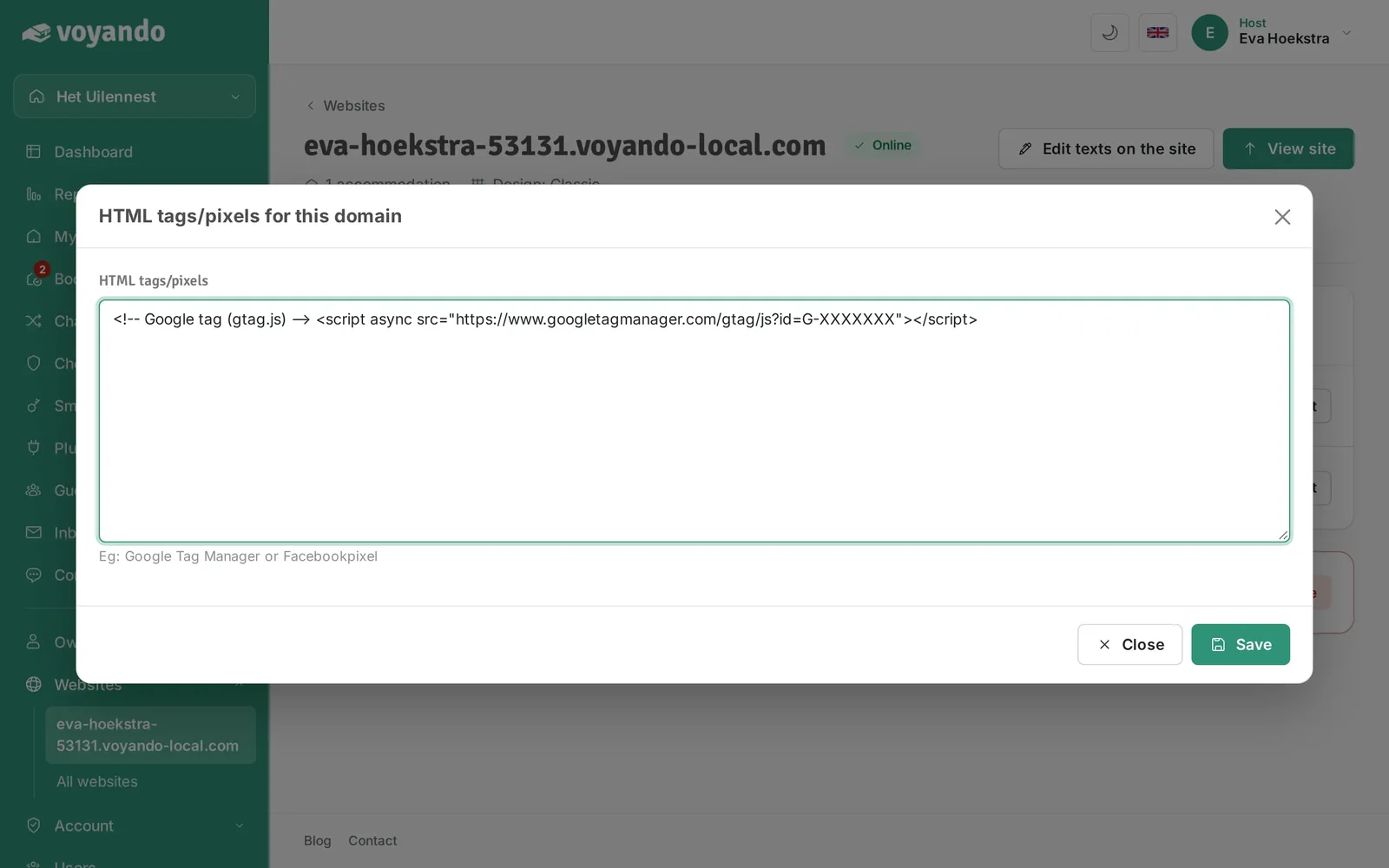
    How do I add a Google or Facebook tag or pixel? – step 6: Paste the tag or pixel you received from Google or Facebook here.
  7. Step 7: Click Save. The code is now on every page of your website.
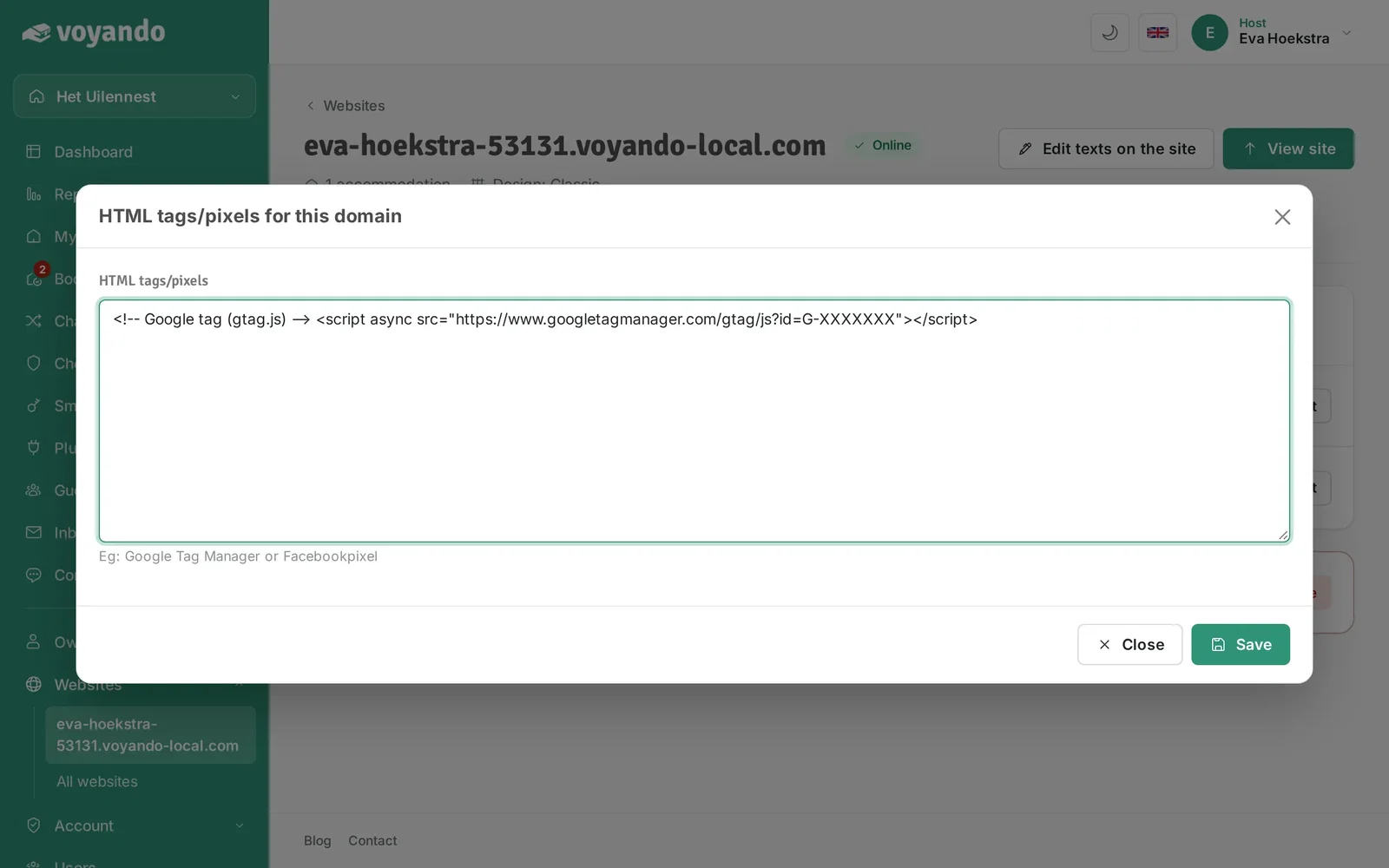
    How do I add a Google or Facebook tag or pixel? – step 7: Click Save. The code is now on every page of your website.

Can’t find your answer here?

Our support team will be happy to help you. Please email us or call us on weekdays, and we’ll look into it with you.

USER REVIEWS

What hosts say about
their experience with Voyando

Veluwseboshuisjes.nl
★★★★★

"Everything runs automatically and my website is always up. No more hassle with separate systems or hiring people. It saves me so much time and it looks really professional."

A
Luxelandleven.nl
★★★★★

"Since then the payment process runs automatically and I no longer have to check manually whether payments have been made. That saves an enormous amount of work. You keep improving continuously, I really appreciate that."

JW
Jan Willem
Stellemaris.com
★★★★★

"With Voyando I have one clear system that always works. My communication with guests goes exactly the way I want and I don't have to do anything twice. And when I have questions, I get help from customer service right away."

F
Azurresidences.fr
★★★★★

"The backend is clear and works intuitively, without unnecessary features. Everything feels logical and stable. A reliable system that is truly built with the owner in mind."

M