How do I connect Chekin?
Retyping guest details takes time. With Chekin, guests complete their registration online themselves. Voyando links each registration to the right booking automatically, so you find everything in one place. Read more about complete guest registration.
Getting started with Chekin
Sign up for the Chekin integration subscription to get started. You can then begin online guest registration straight away.
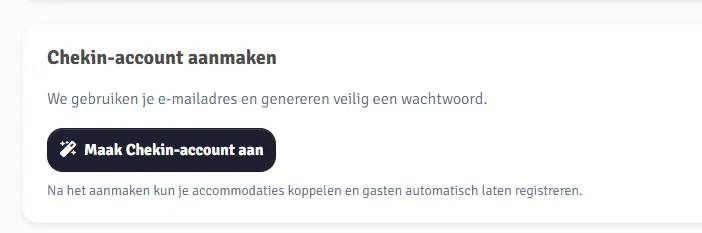
Step 1: Create a Chekin account Go to the Chekin integration page in your Voyando Dashboard. Click the button to create your Chekin account. Follow all the steps and fill in all the requested details.
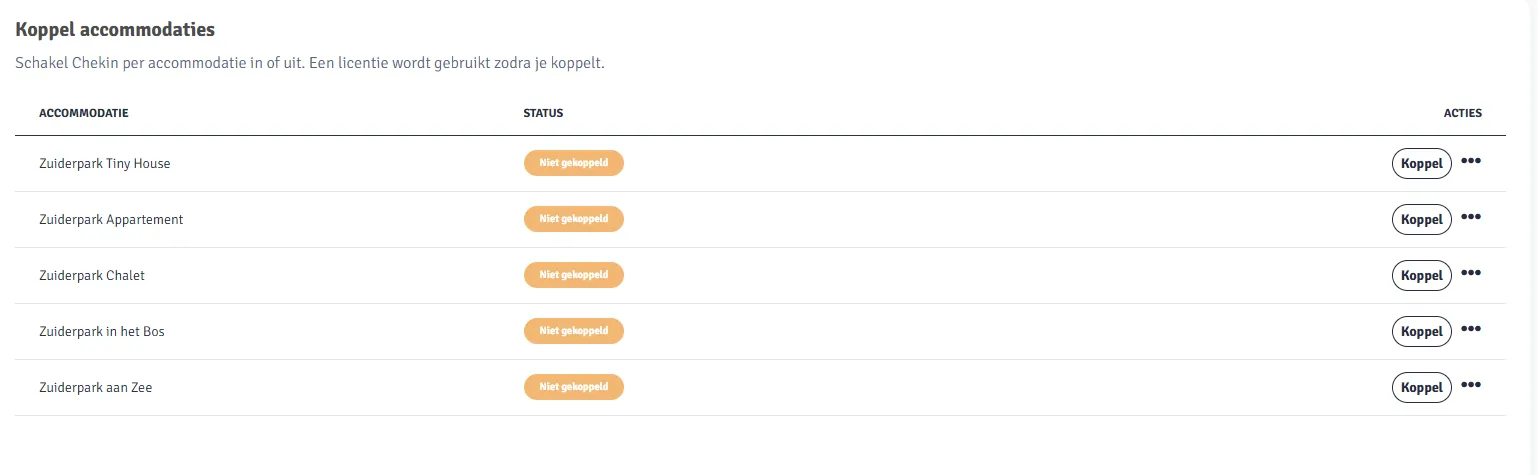
 Step 2: Link accommodation Go to the accommodation overview.
Click on the white ‘Link’ button next to the accommodation you wish to connect to Chekin.
 Step 3: Configure
Chekin Click ‘Configure Chekin’ next to the linked accommodation.
You will now be taken to the Chekin configuration screen.

Step 4: Enable sharing with local authorities Enable the connection to share guest details with the local authorities.
Enter all the required account details.
Save the settings.
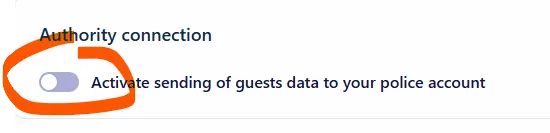 Step 5: Enable
email template
To automatically retrieve guest details upon booking, each guest must receive a unique registration link. An email template is provided for this purpose, which you must activate yourself. Without activating this template, guest details will not be retrieved automatically.
In the Dashboard, go to Communication.
Open ‘Email Templates’.
Under ‘Sample Templates’, find the template named ‘Guest details for guest registration [Check-in Module required]’.
Click on the green button ‘+ Use this template’.
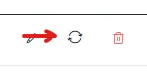
The template can then be customised as required. Using the arrow icon, you can also apply the email template to existing bookings, so that these guests will still automatically receive the registration link.
Step by step · 6 steps
-
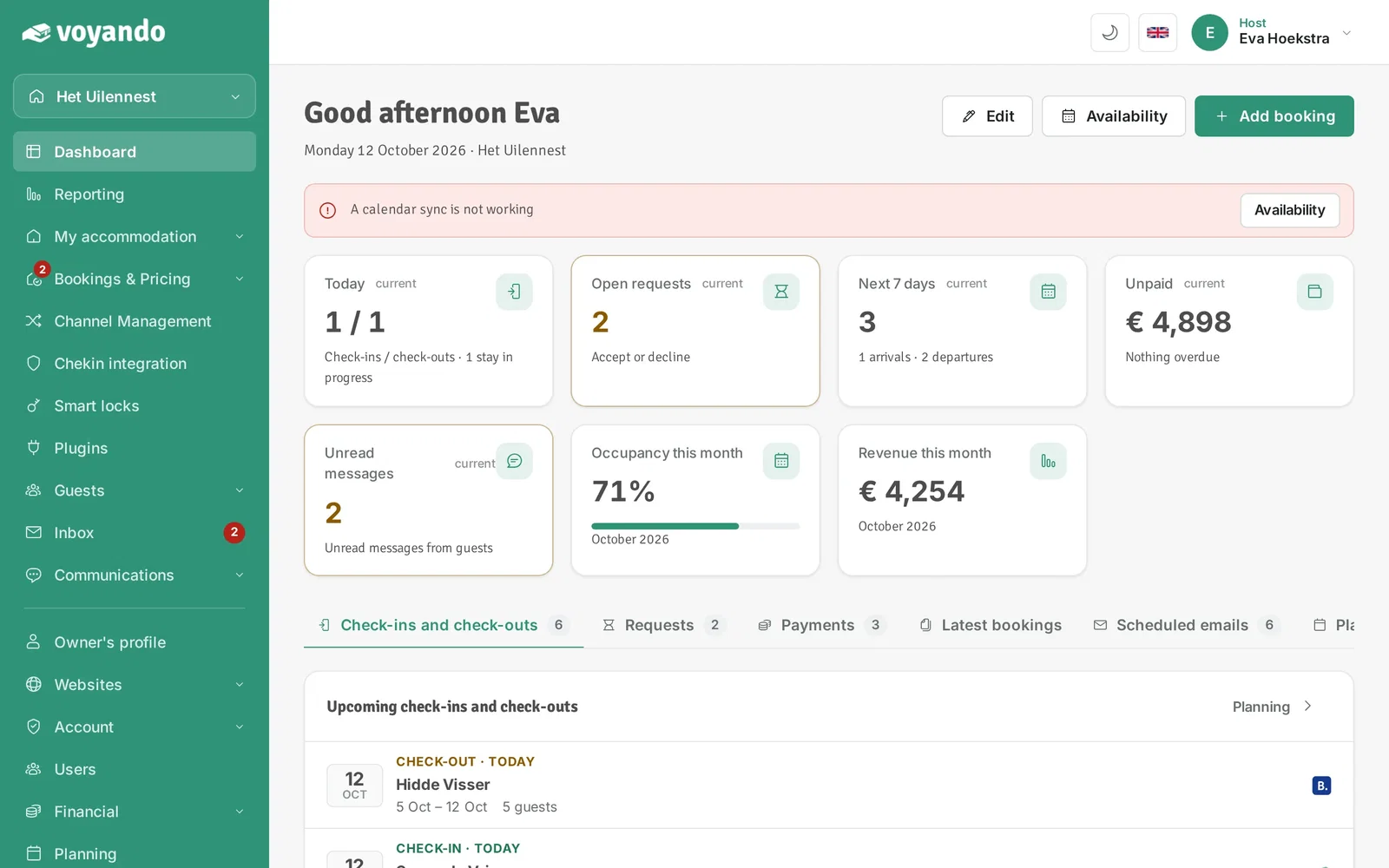
Step 1: Go to your dashboard.
-
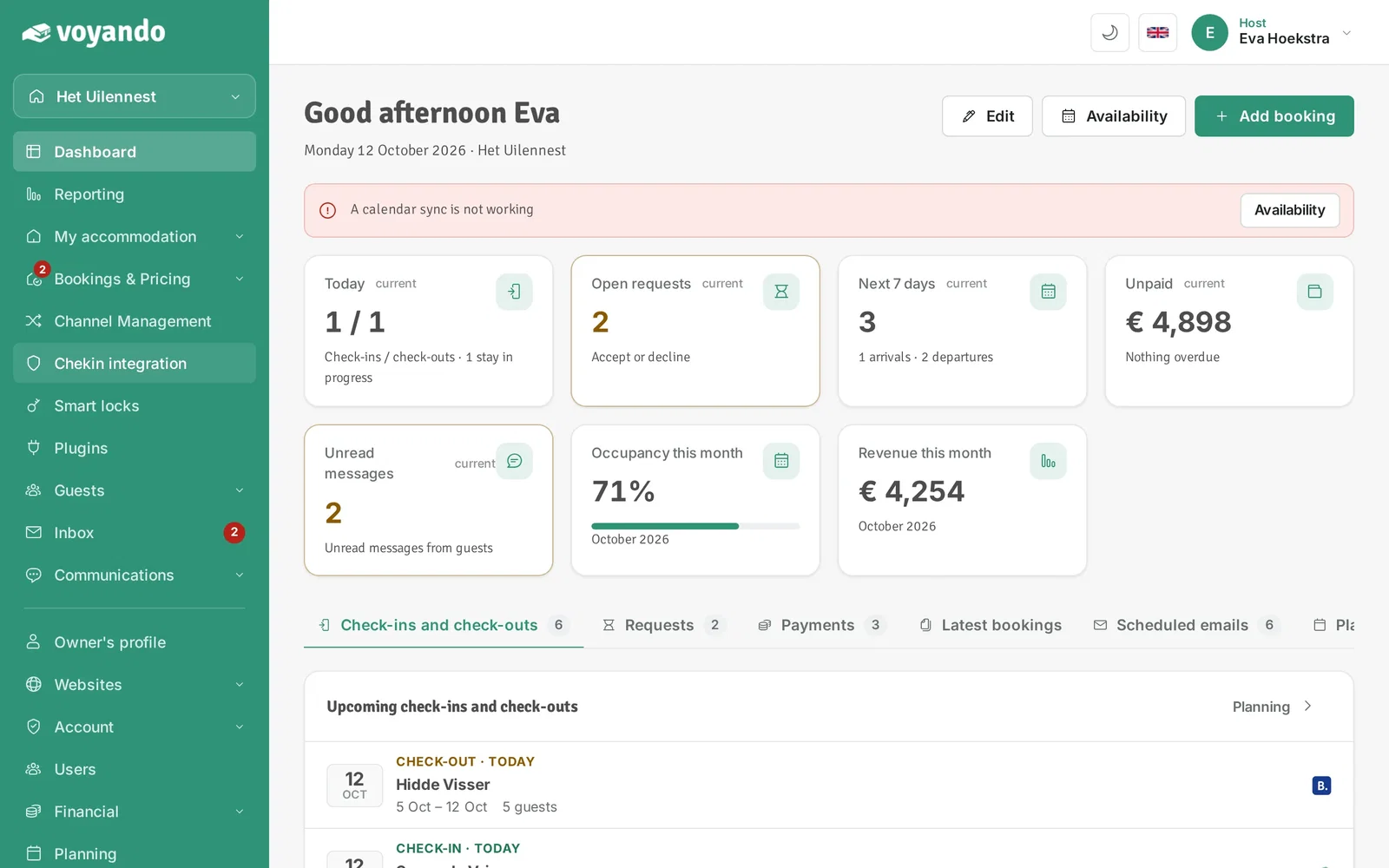
Step 2: Click Chekin integration in the menu. No subscription yet? Activate it here first.
-
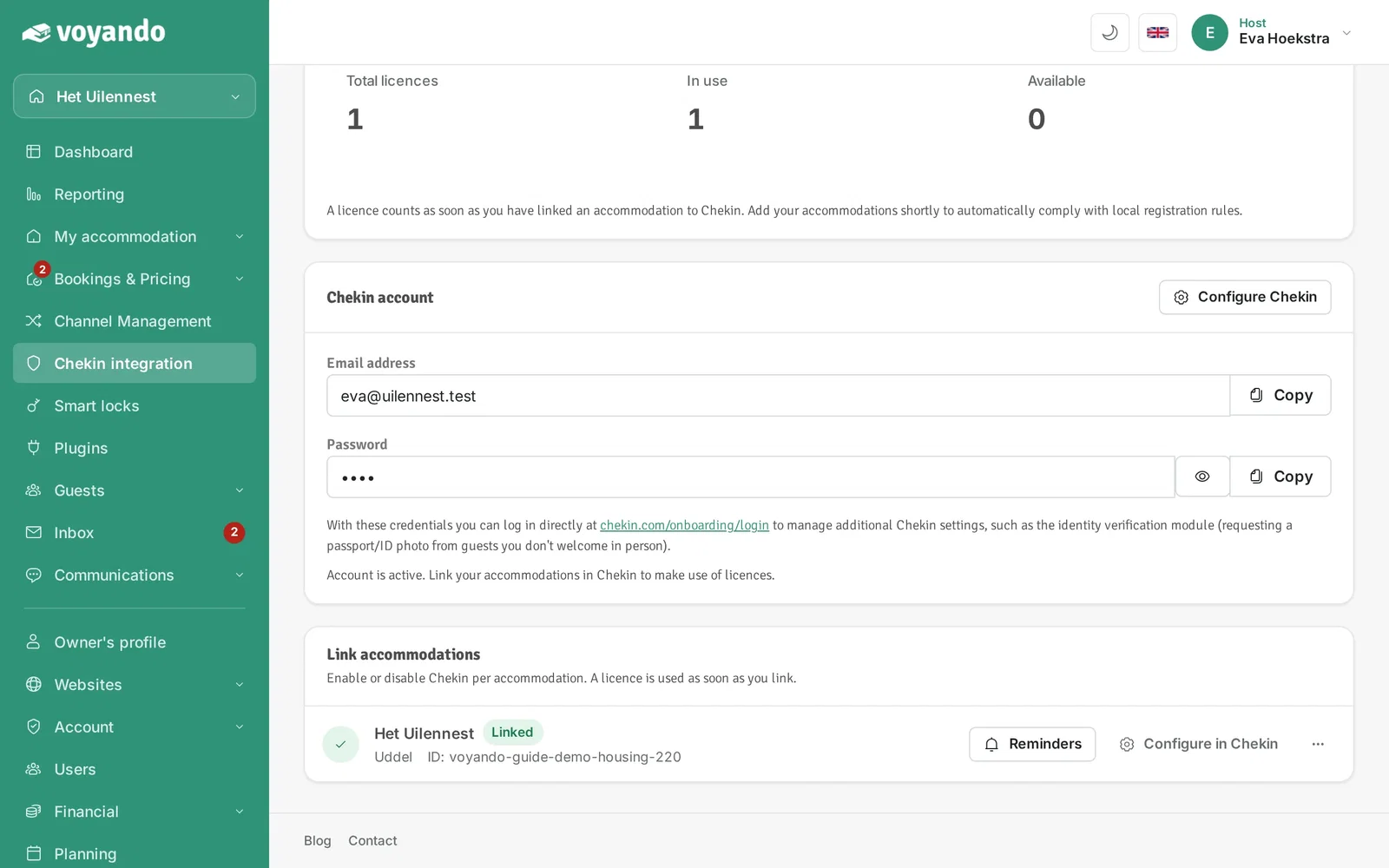
Step 3: Under Chekin account you find your account with the login details for chekin.com. No account yet? Create it here.
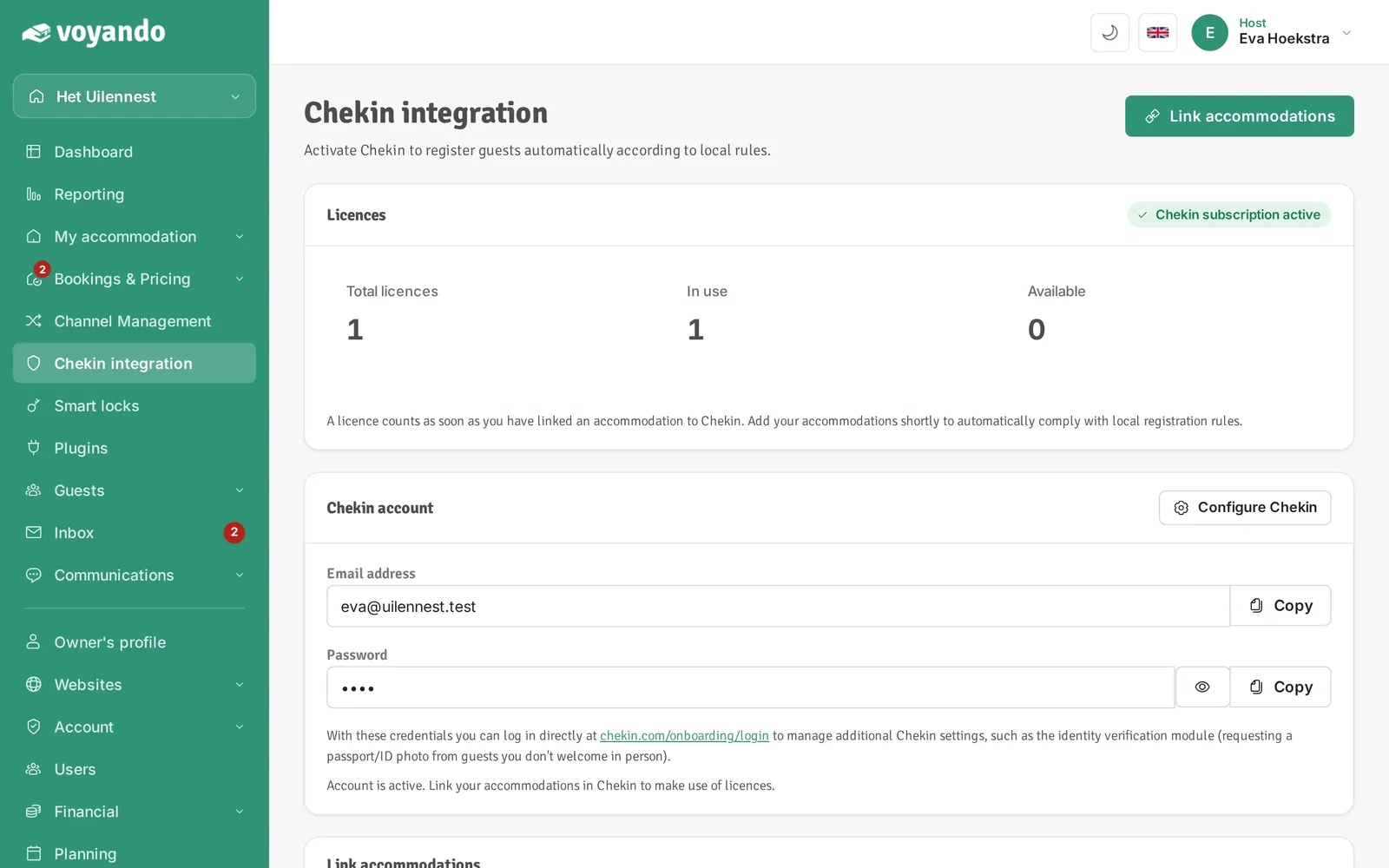
-
Step 4: Click Link accommodations.
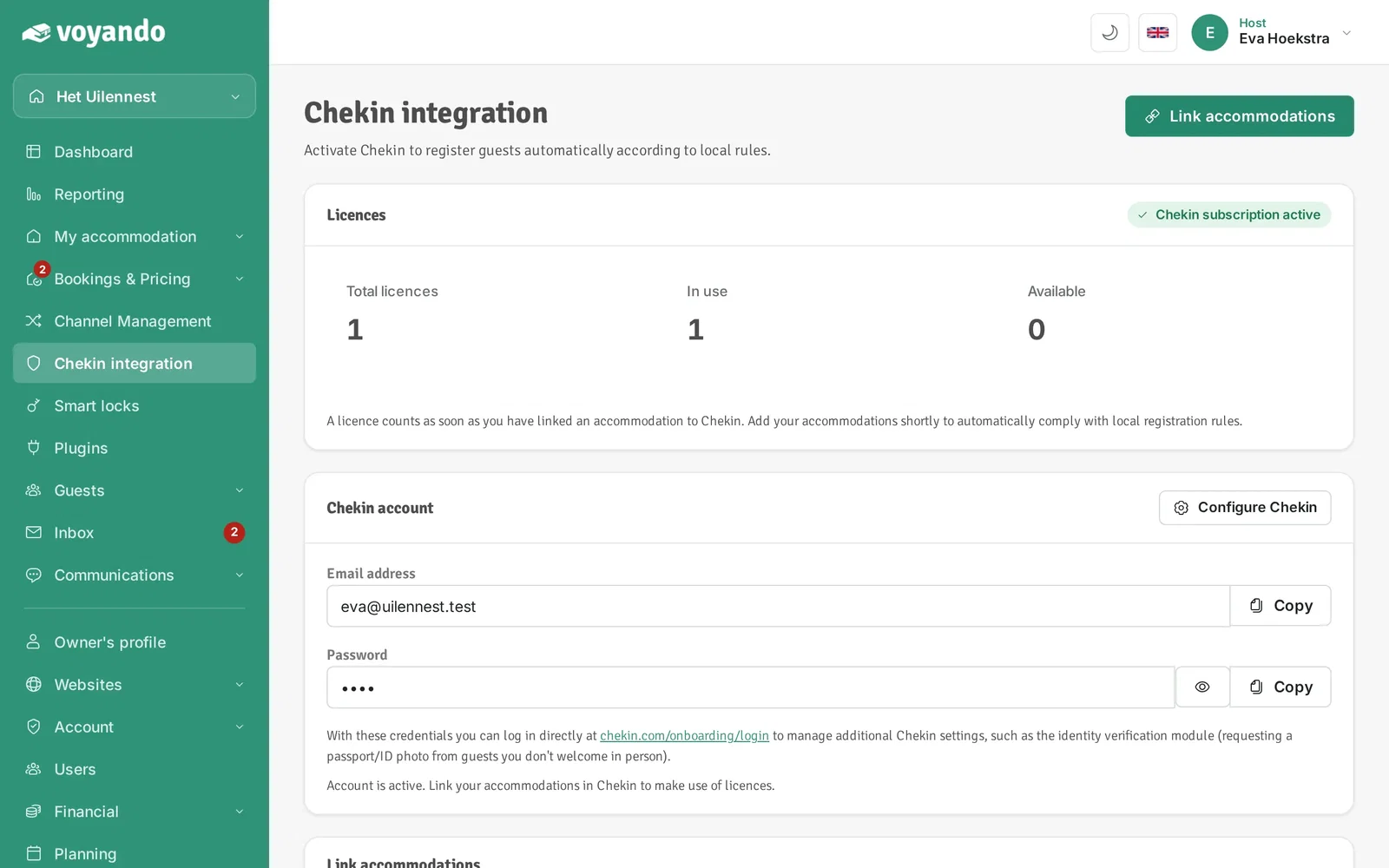
-
Step 5: Click Link next to your accommodation. Each linked accommodation uses one licence; it then shows Linked.
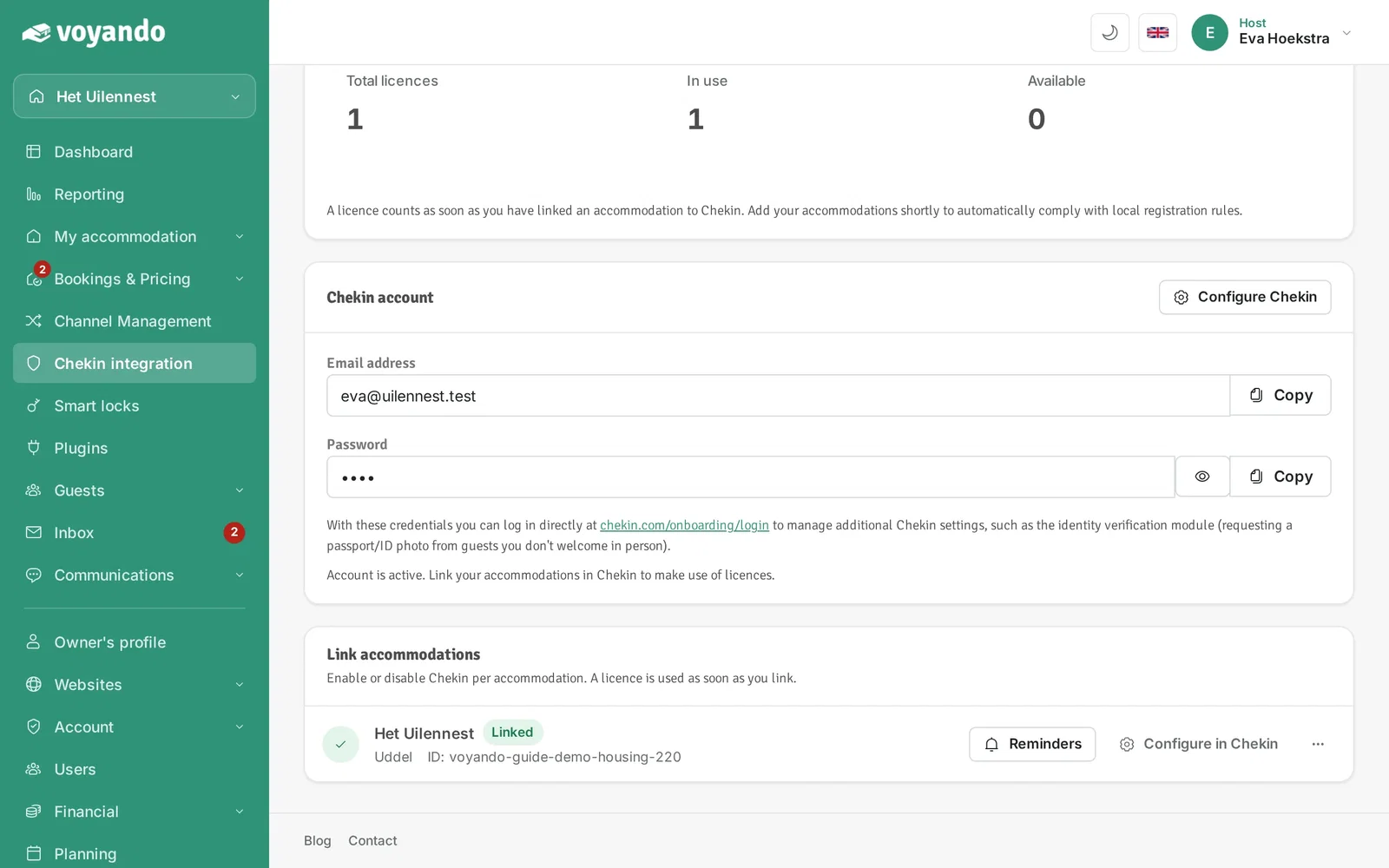
-
Step 6: Use Reminders to set when your guests get a reminder to check in online.