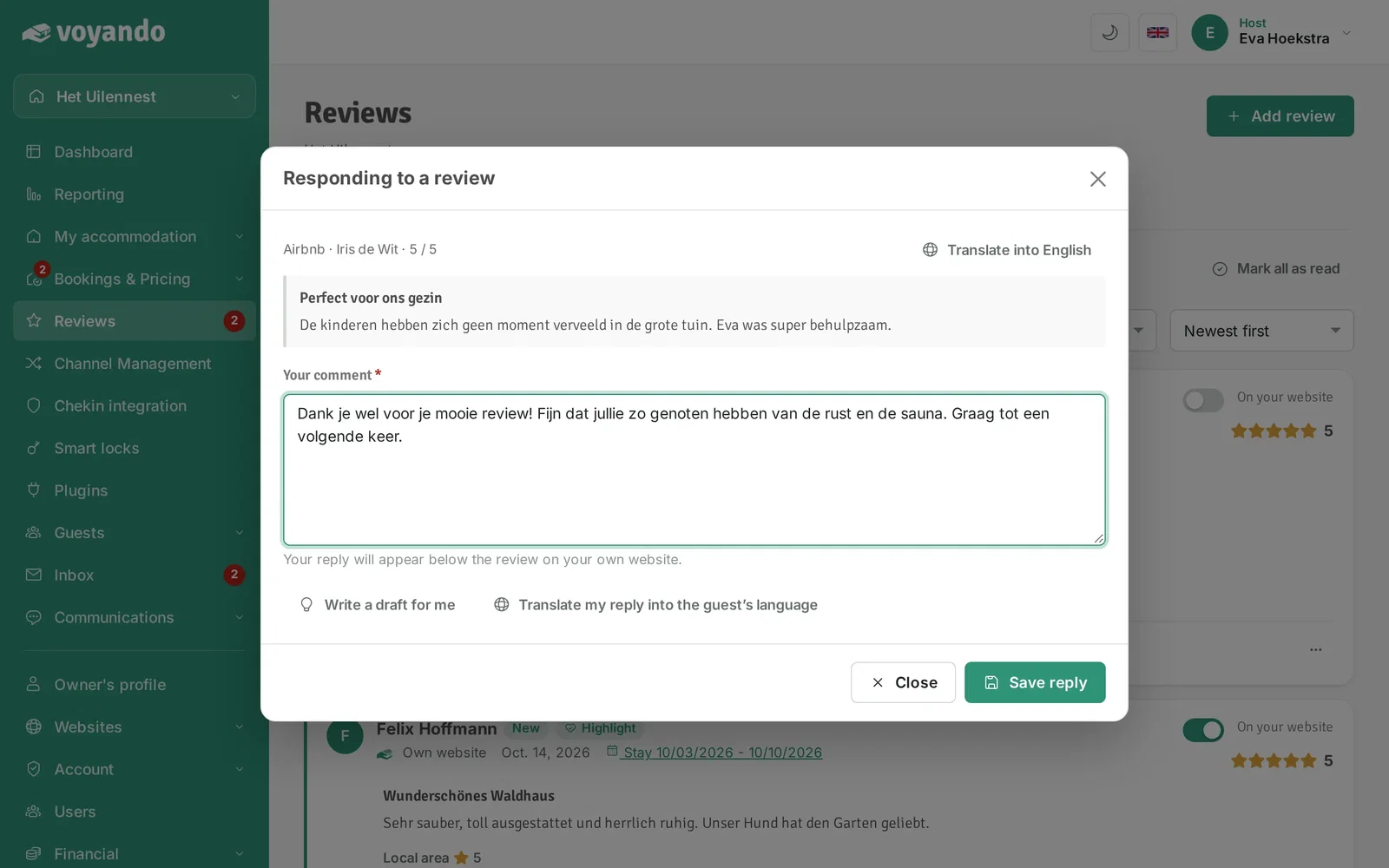
A friendly reply shows future guests that you are there for them. Read more about managing reviews with Voyando.
Good to know
- You can reply to a Booking.com or Airbnb review only once; your reply goes to the platform and cannot be changed afterwards.
- A reply to a review from your own website appears below the review on your website. You can still change or delete it later through the three dots.
- The draft reply is a suggestion: always read it before you post it.
Step by step
-
Step 1: Go to your dashboard.
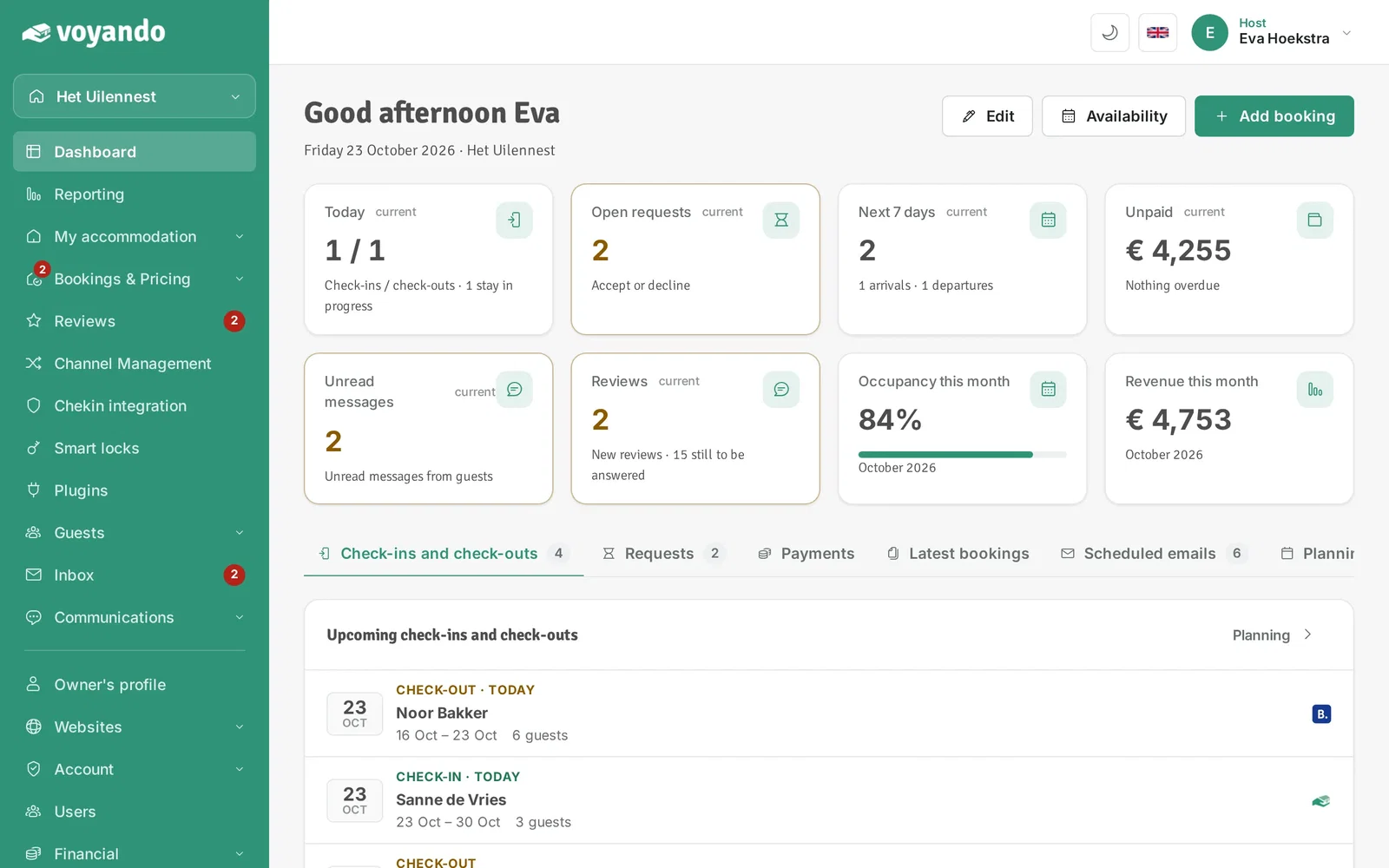
-
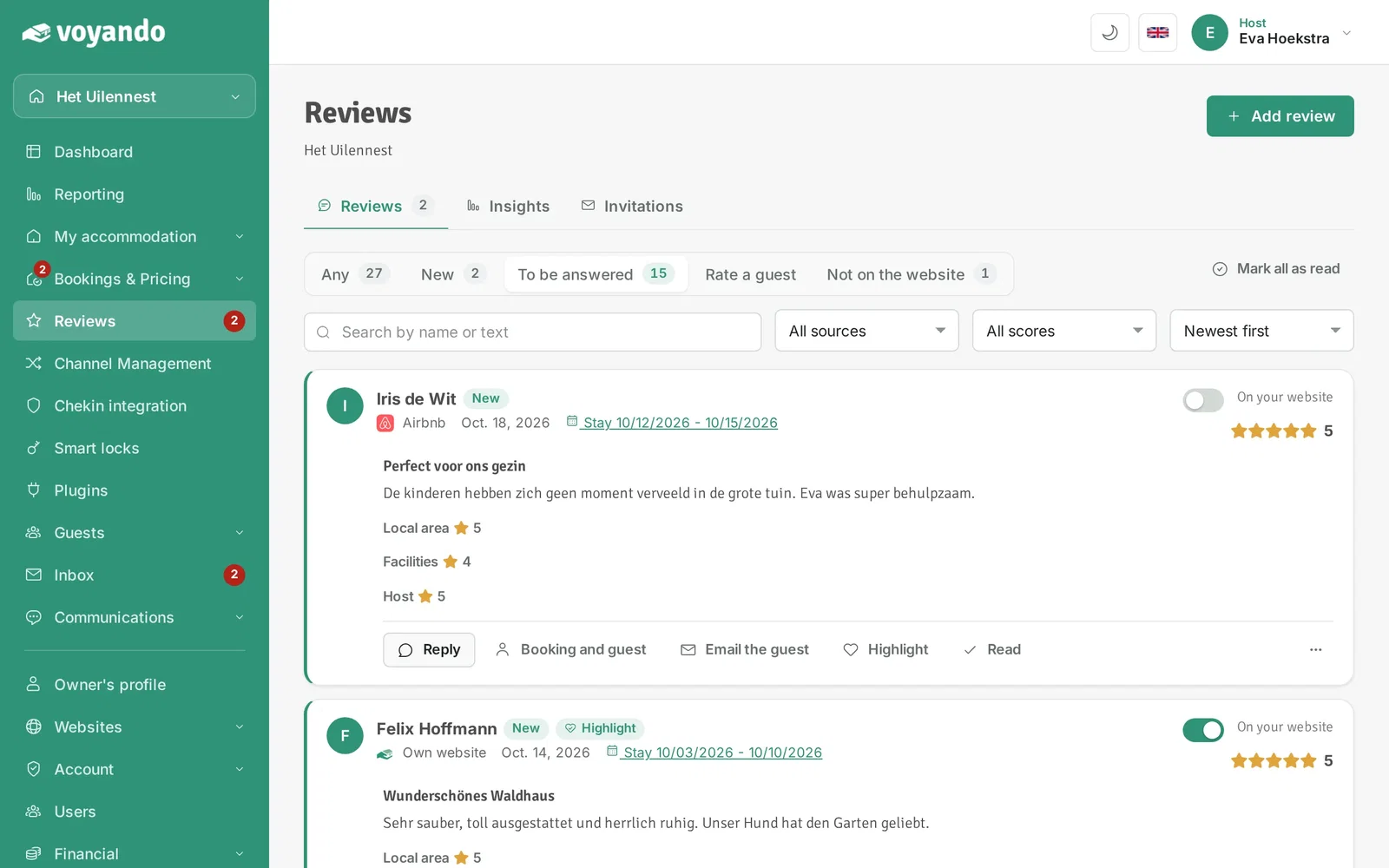
Step 2: Click Reviews in the menu.
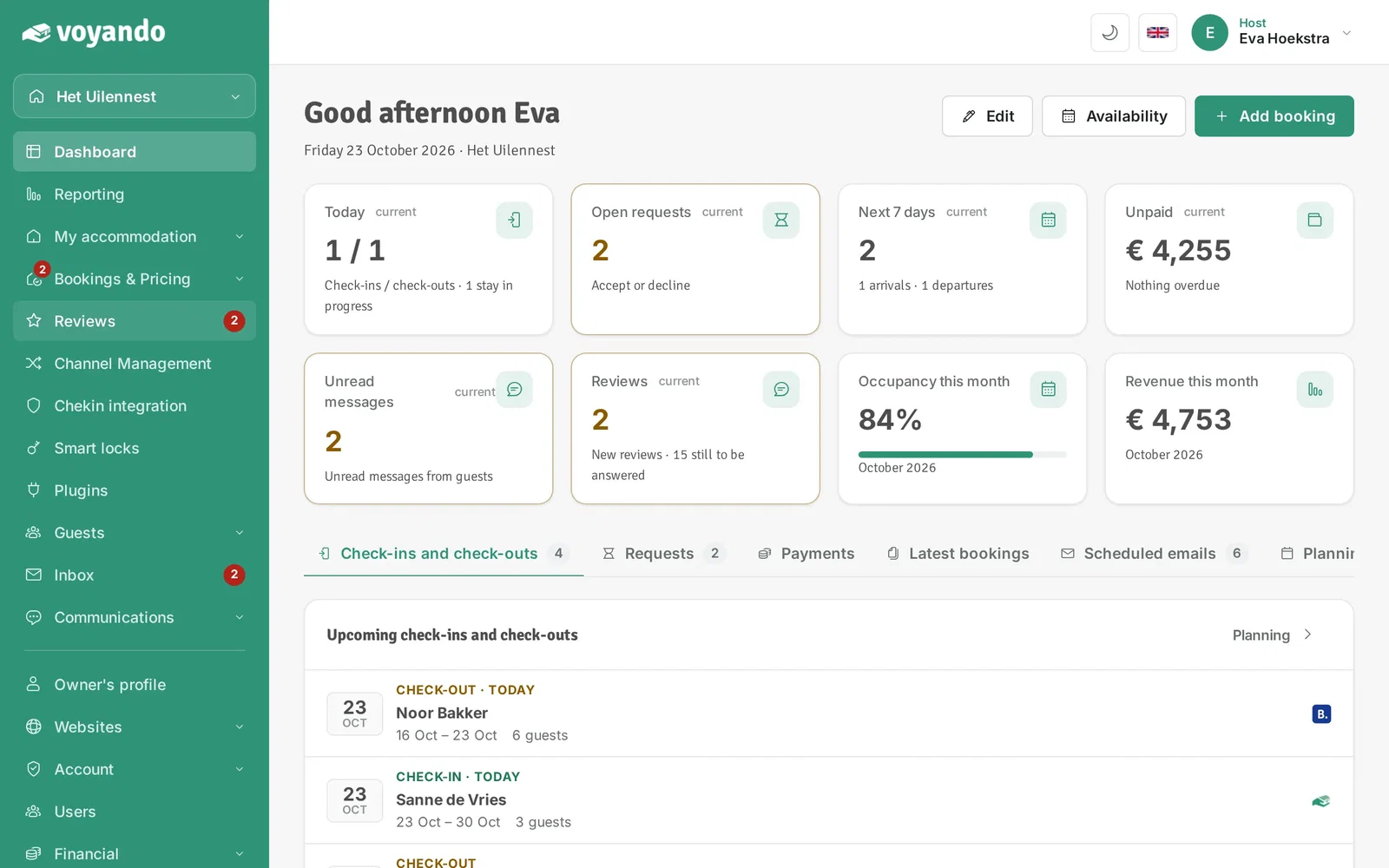
-
Step 3: Open the To be answered tab. It lists the reviews you have not replied to yet.
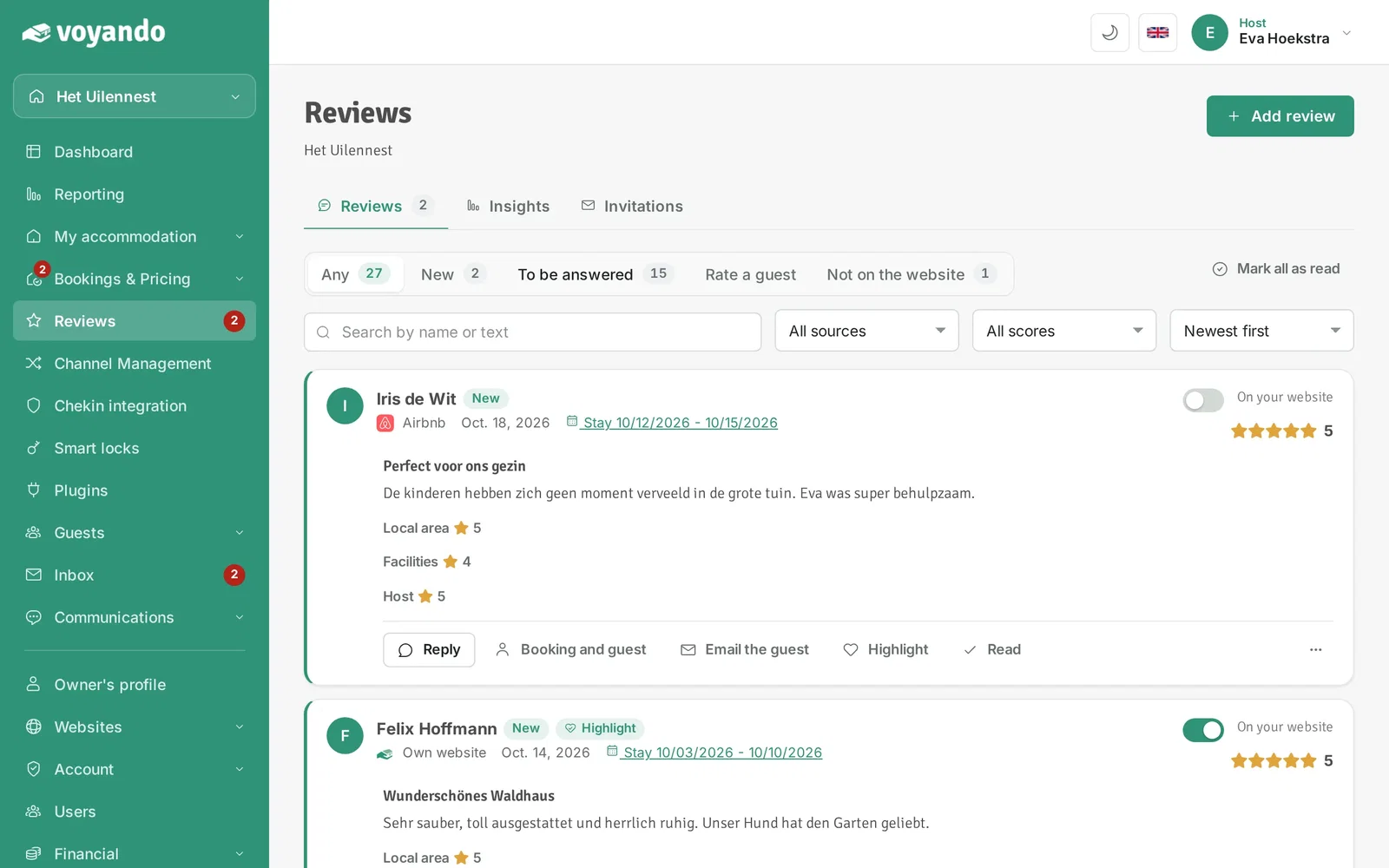
-
Step 4: Click Reply next to the review.
-
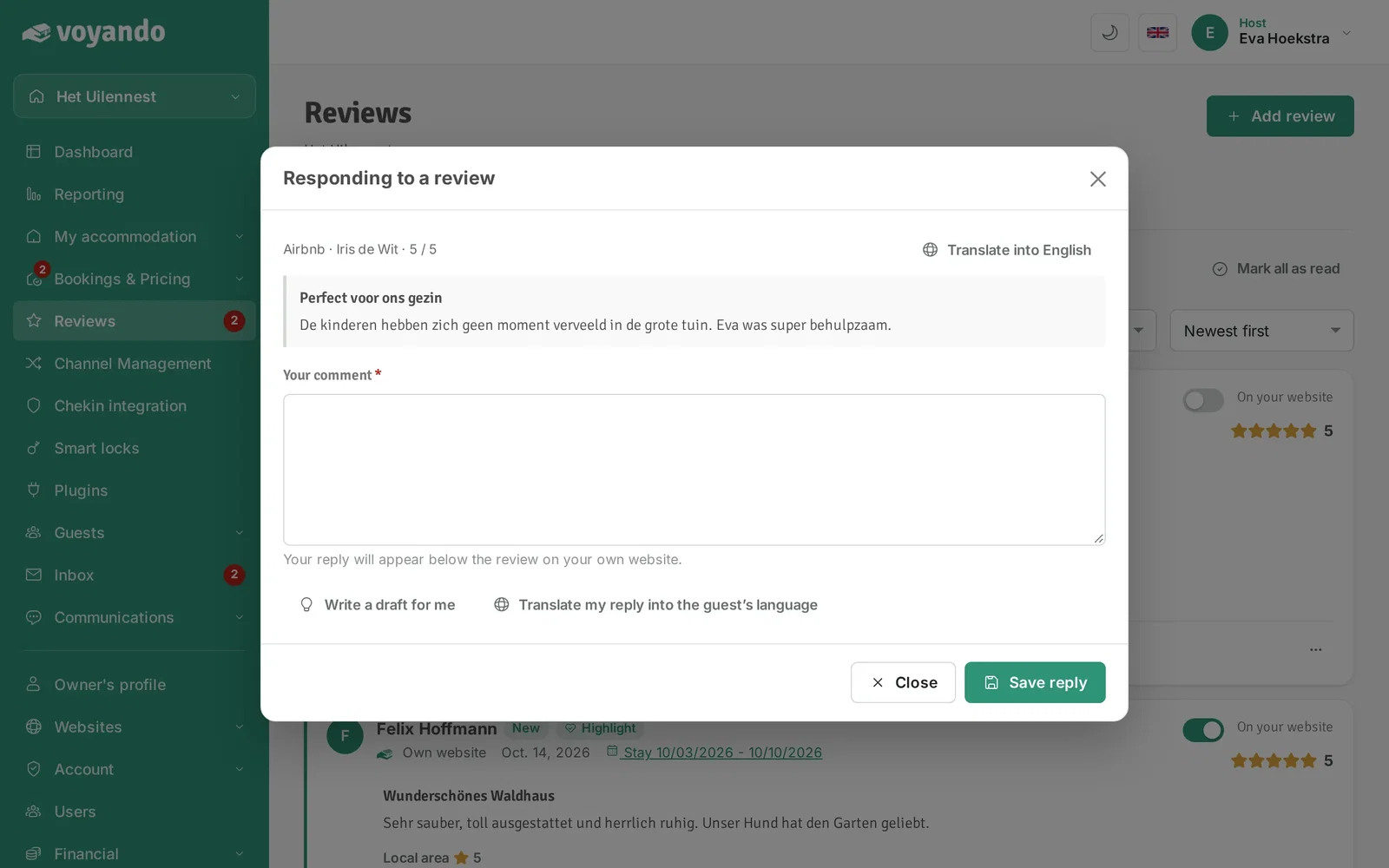
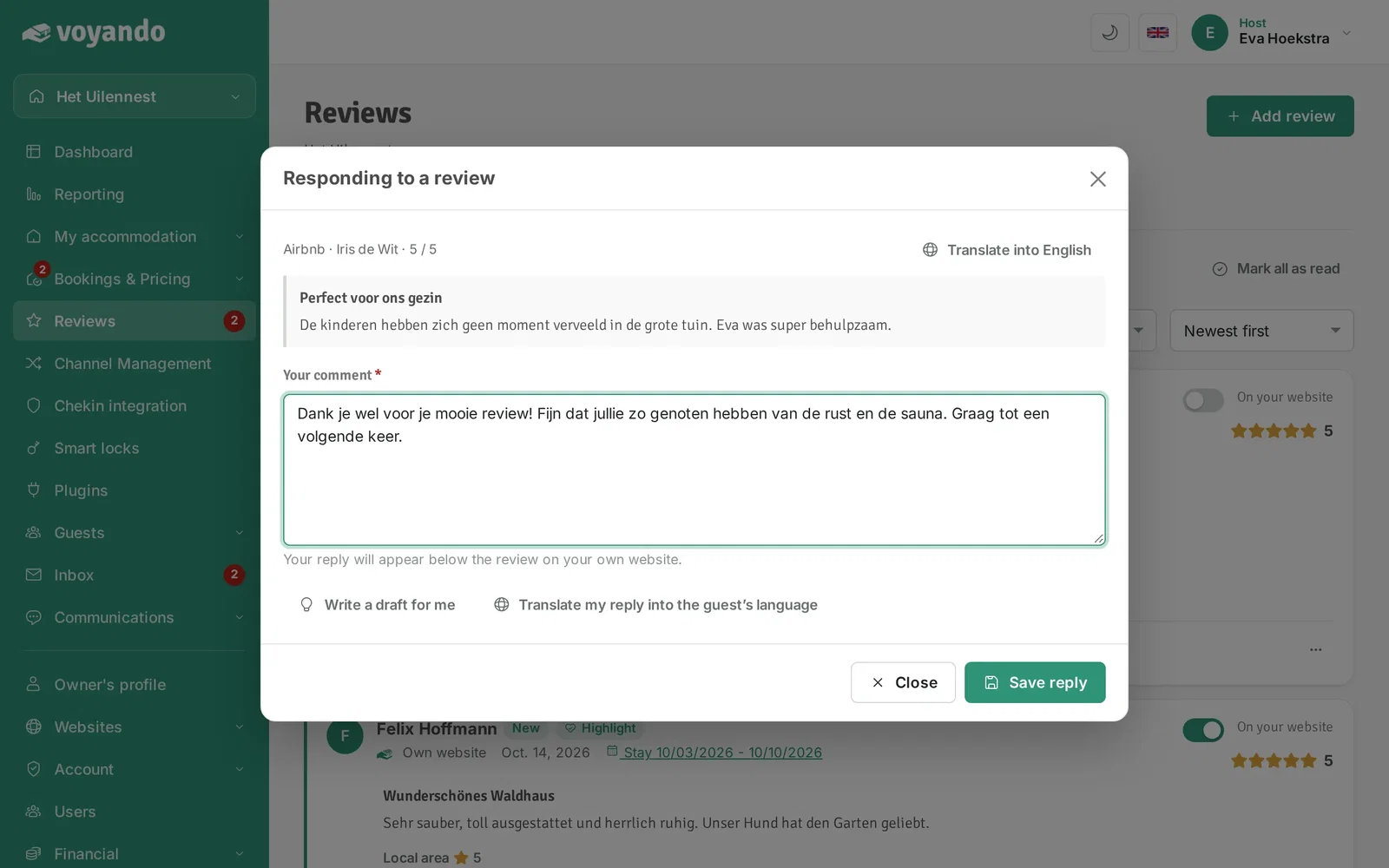
Step 5: Is the review written in another language? Click Translate to read it in your own language.
-
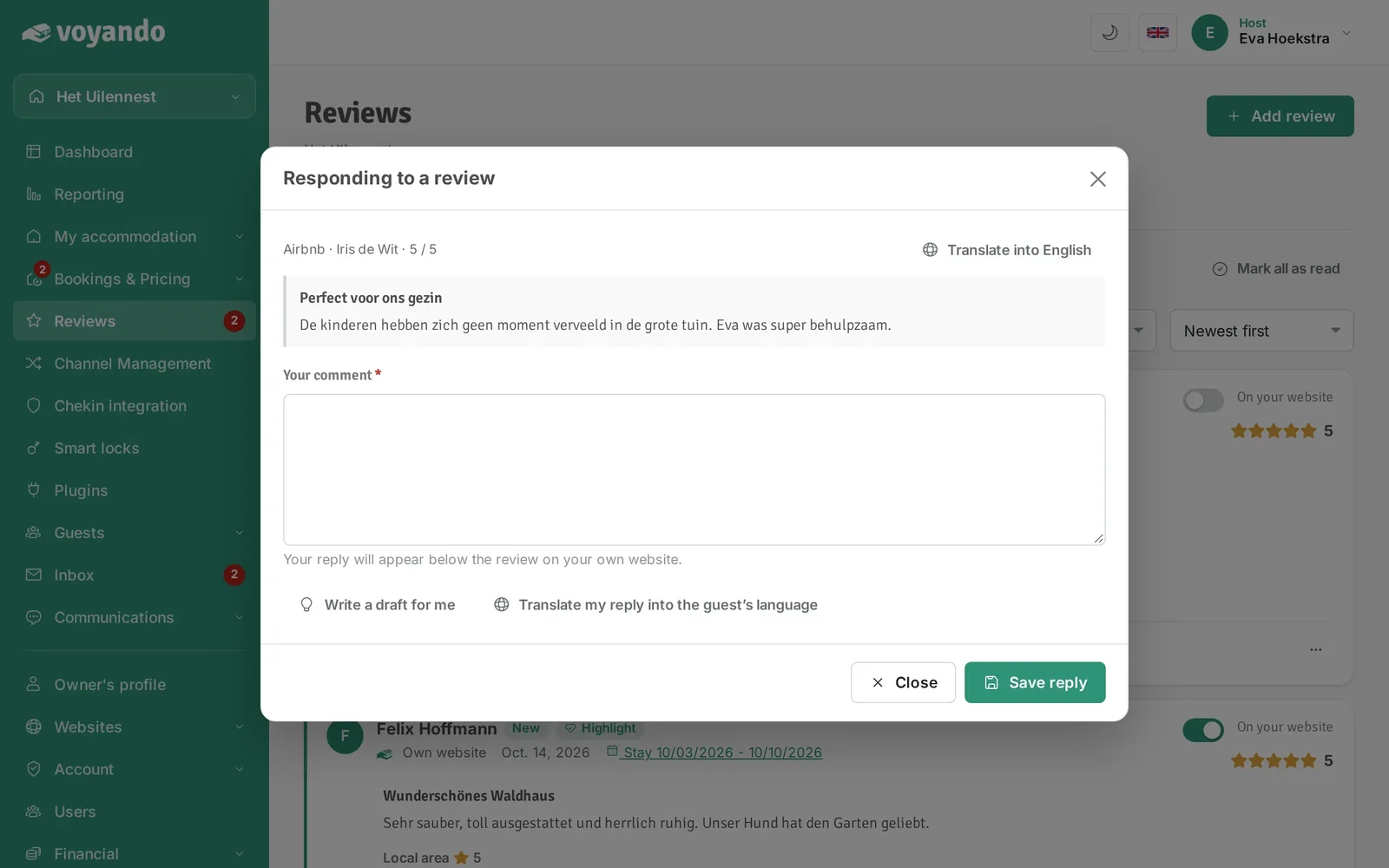
Step 6: No inspiration? Click Write a draft for me. You get a suggestion in the guest's language that you can edit yourself.
-
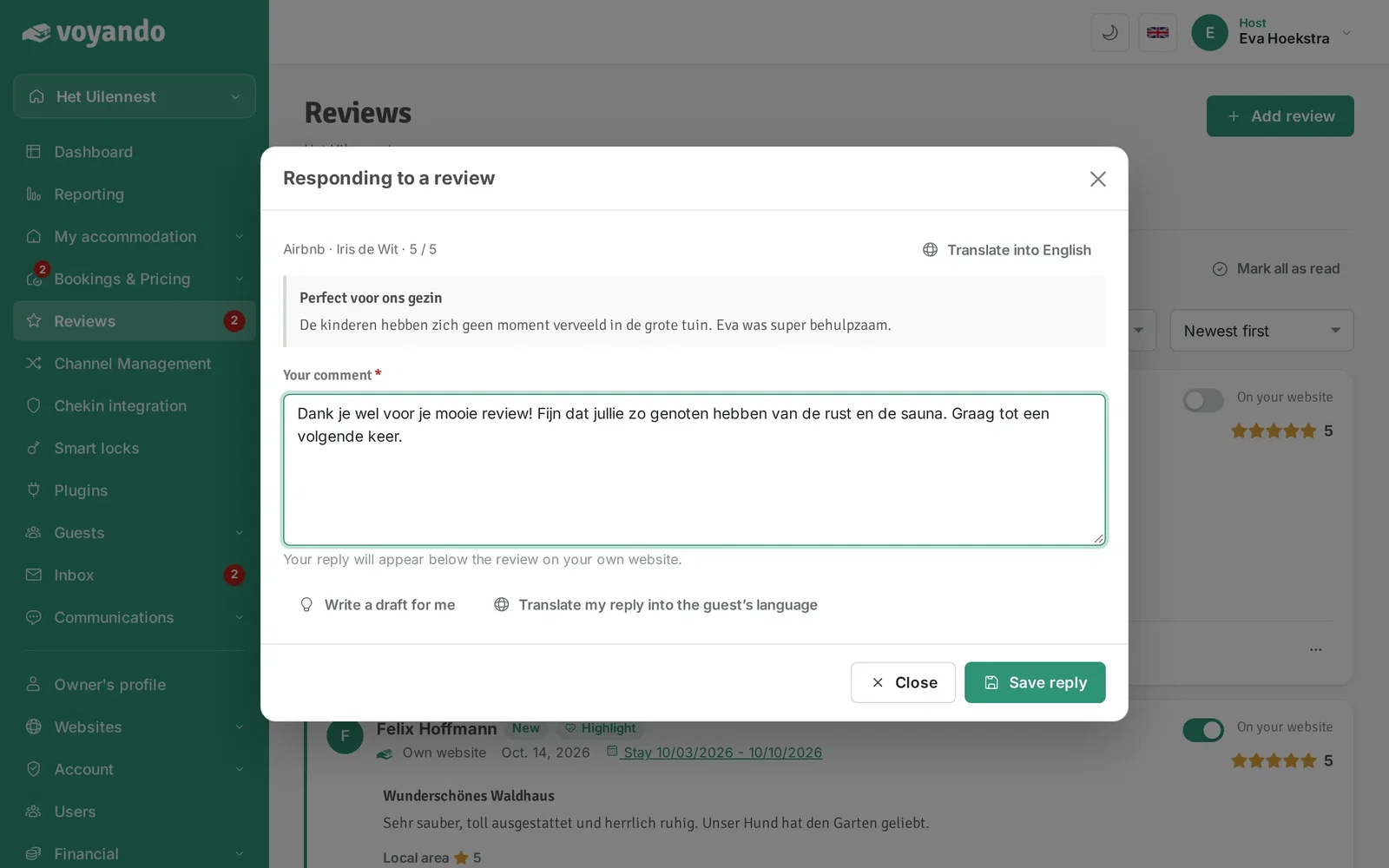
Step 7: Write your reply.
-
Step 8: Did you write in your own language and the guest in another? Click Translate my reply into the guest's language.
-
Step 9: Click Save reply. For a review from your own website your reply appears below the review on your website. For Booking.com and Airbnb the button is called Post reply and your reply goes to the platform; there you can only reply once.